
Site hosting news, tutorials, tips, How Tos and more

Note: The manual methods in this tutorial are great, but if you’re looking for a “set-it-and-forget-it” automated backup solution, we now offer a site backup service that can also back up your MS SQL and MySQL databases. Read more about it on our site, or activate it in Control Panel. It’s easy, it’s inexpensive and it’s cool. What more could you ask for?
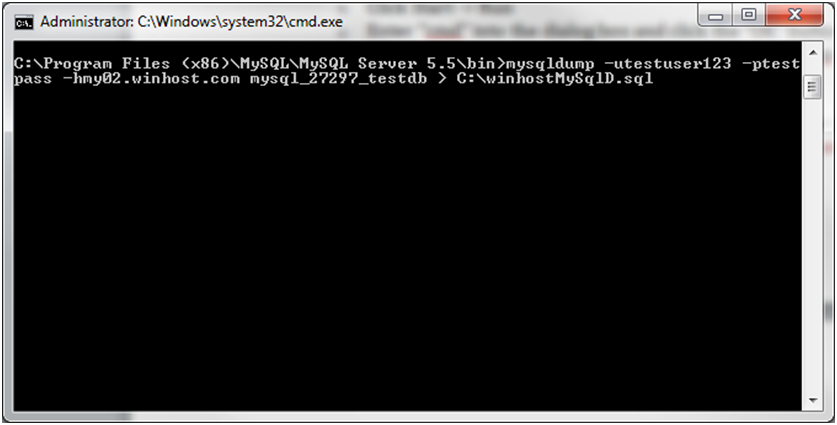
A lot of people seem to have a problem doing backup and restoration of a MySQL database easily and quickly. However, I am going to show you how to do just that using MySQL’s built in mysqldump.exe utility through a Windows MS-DOS prompt.
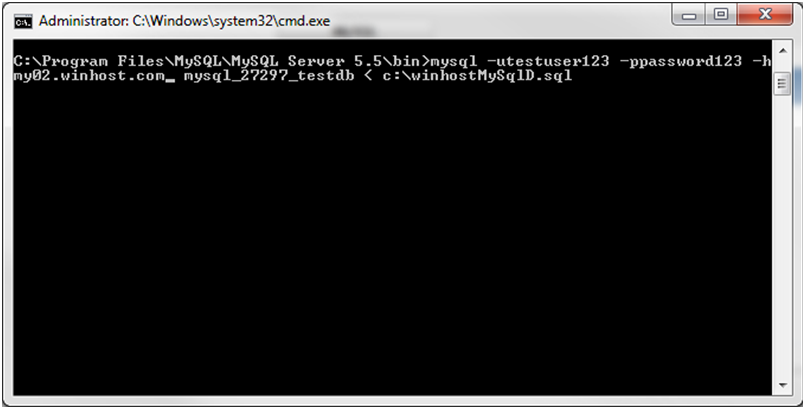
There are some limitations to this utility given that Winhost customers cannot add and drop databases when trying to restore a backup, so the restore section is only recommended for new empty databases. My local environment also consisted of using MySQL version 5.5.13 so that this information would be as up to date as possible. You can find additional features, commands, and details on this tool straight from the MySQL site.
First you are going to want to download the latest version of MySQL from the MySQL site.
Note: If you are not sure whether to download the MSI installer file or the .zip archive I would recommend to downloading MSI package. This file provides you with everything you need including a Configuration Wizard which is not included in the No-install Archive.
 Now install MySQL on your local machine in the default directory
 C:\Program Files\MySQL\MySQL Server 5.5 since this is what Oracle recommends. Here is the installation documentation for both the MSI Installer package and the ZIP Archive:
Installer – http://dev.mysql.com/doc/refman/5.5/en/windows-using-installer.html
Archive – http://dev.mysql.com/doc/refman/5.5/en/windows-install-archive.html
Here is an example of the command line syntax:
Note: The following command will only write the data that is in the .sql file. This will not drop and create the database or truncate any of your other tables in your database. The command will script all the table data in the .sql file to your Winhost database. If you have a table name present in your Winhost database that matches a table name in the .sql file, the table will be overwritten with the new data. Otherwise the script will create a new table and populate it with the new data.
There are many other features and commands available if you would like to dig a little deeper into this useful utility, including setting character sets, changing ports, and selectively choosing tables to dump. In case you missed it earlier I have included the link below:
http://dev.mysql.com/doc/refman/5.5/en/mysqldump.html
Jaime
Winhost Technical Support
thanks good info
thanks for the info n.n
Thanks a ton..!!!
Sure Jayesh. That looks like a Kay guitar in your Gravatar…
Thanks from the useful information.
i created back up.. then deleted the detabase.. now when im trying to restore.. i caanot be restored.. it says.. database not found. plz hlp…
thanks for the information
first create database using create database then use Restore
Not sure if you are still monitoring this thread. Hope you don’t mind a question from a MySQL newbie.
Using MySQL on Windows, is there a way to specify the input file name when restoring using MYSQLIMPORT.EXE or MYSQL.EXE other than using < inputfile ?
For example, MYSQLDUMP.EXE has the –result-file (or -r) parameter. I cannot find an equivalent input file parameter for MYSQLIMPORT.EXE or MYSQL.EXE.
Or is < inputfile the only way to do that?
good information is working
Can you share the mysql commands to do the same
This is for MySQL…